


How to Recover Deleted Files from a USB Flash Drive Without Software
You plug your USB flash drive into your computer, open the folder, and find it completely empty.

If those files were work reports, school projects, or photos you can't replace,that will make you panic.
Before you recovery program, please check Windows to bring deleted files back or not via its built-in ways.
This guide is for 2026 Windows users. And shows you how to pick a high-durability flash drive via every no-software method.
The Golden Rules Before You Start
Stop writing to the drive now
Do not save new files, create folders, or run any disk-writing tool on the USB drive until you've finished recovering. Every new file written may overwrite the data you're trying to save.
Recovery is a race against the system's normal write activity, and the system does not know you're in a hurry.
What actually happens when you delete a file
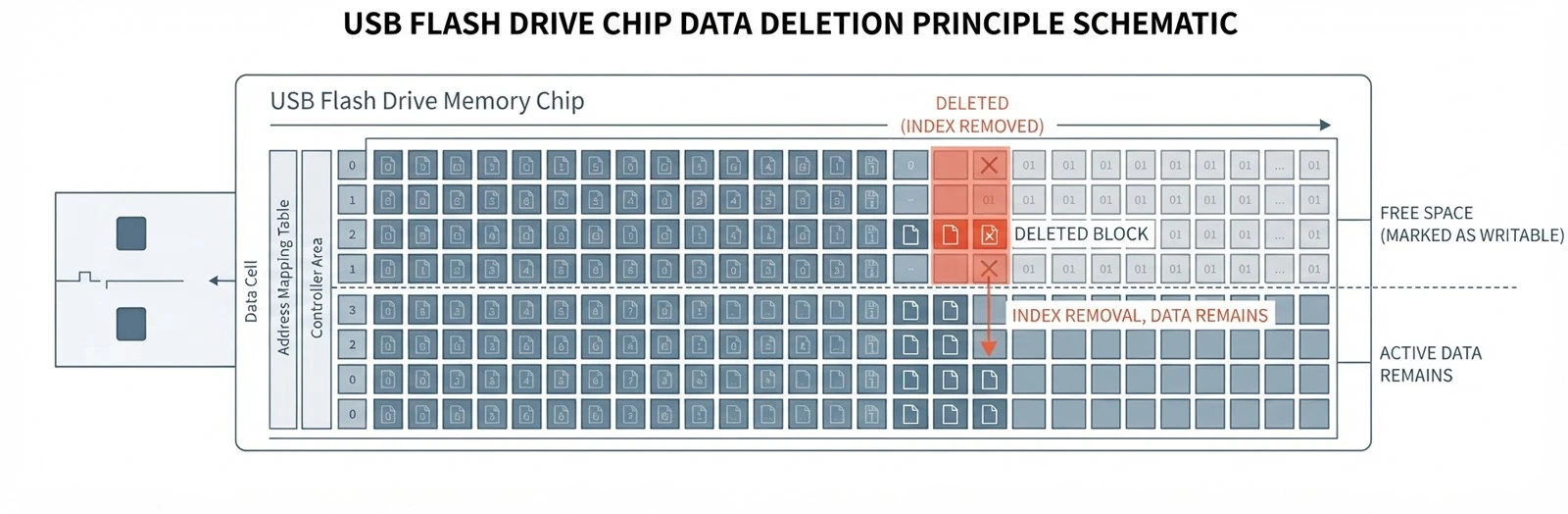
Windows does not erase the data bits immediately. It removes the index marker - the pointer that tells the file system those sectors belong to a file - and marks the space as available. The bytes are still sitting on the chip.
They stay there until something else claims that space. Write a new file, and the controller drops fresh data right over the old footprints, permanently, with no warning and no undo. That single behavior is why the first rule of DIY recovery is also the simplest: touch nothing, or lose everything.
Assume the clock is running
Background indexing, antivirus scans, and thumbnail caches all write to removable drives on their own. If you can, copy the drive's contents out to a known-good location first, or work from a different machine entirely.
What Can (and Cannot) Be Recovered Without Software
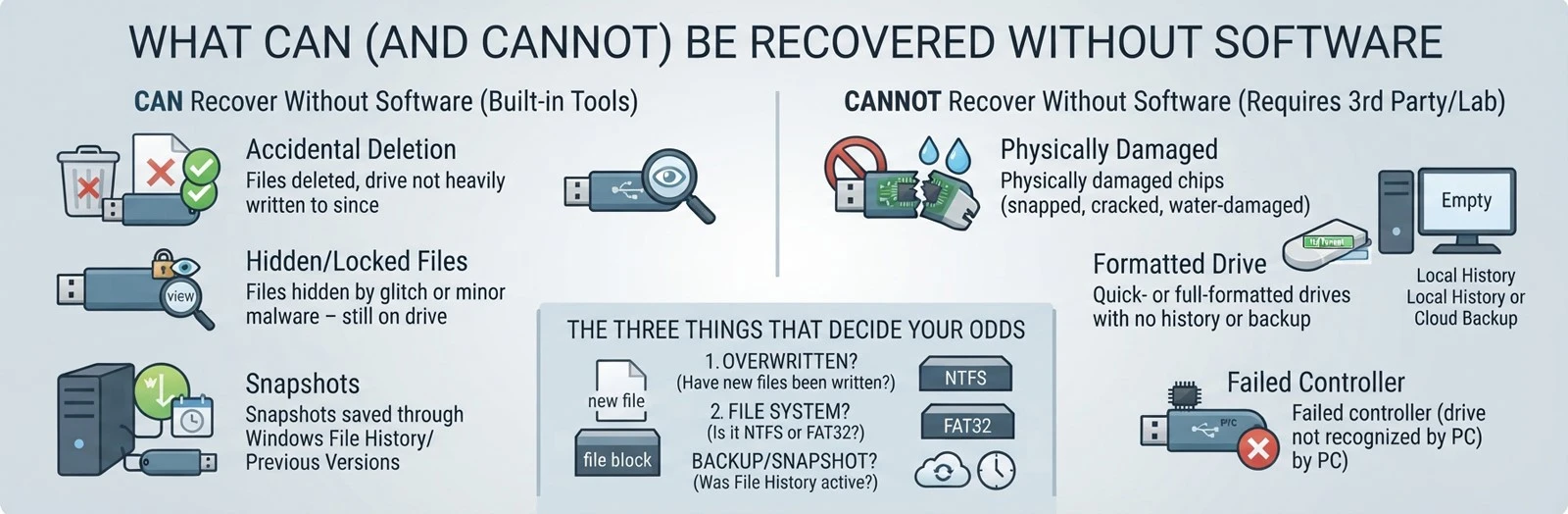
Built-in tools are capable, but they have hard limits, and the honest answer depends on what happened to the drive after the files disappeared.
You can usually recover without software:
Files deleted by accident on a drive that has not been heavily written to since
Files hidden or locked by minor malware or a system glitch - still on the drive, just flagged out of view
Snapshots saved through Windows File History or Previous Versions on your PC
You cannot recover without software:
Physically damaged chips - snapped, cracked, or water-damaged boards (this is the case for shock-resistant, waterproof USB drives)
Quick- or full-formatted drives with no local history and no cloud backup
Drives with a failed controller that the computer no longer recognizes at all
Before assuming the worst
If a disk does not appear in File Explorer,it doesn't mean the usb flash drive is defective. You can check whether the data cable is damaged, or whether the power supply is faulty. You can also test on different ports, a different data cable, or another computer. These problems can easily figure out,but once the chip is damaged, it cannot be repaired.
The recovery decision table
How to cover your files, please check the following situation.
|
Situation after deletion |
Likely outcome |
Use this section |
|
No new writes; File History or Previous Versions was active |
Good chance of full restore |
Method 1 |
|
No new writes; no snapshots, but drive was synced to cloud |
Files may still sit in cloud Trash / Version History |
Method 2 |
|
Drive shows "full" but the folder looks empty |
Files are probably hidden, not deleted |
ATTRIB |
|
New files were written after deletion, or drive was formatted with no backup |
Built-in tools cannot help |
Third-party software or a lab |
The three things that decide your odds
Whether these bytes remain intact depends on three factors: whether any data was written to the hard drive after the files were lost; whether the hard drive's file system is NTFS or FAT32/exFAT; and whether a backup or "File History" snapshot was running before the data was lost. The following sections will help you determine which of these scenarios applies to you.
Method 1: Recover USB Files with Windows File History & Previous Versions
If you used this USB drive on your current Windows PC before and system backups were active, Windows may have quietly saved snapshots of your data.
Using File History
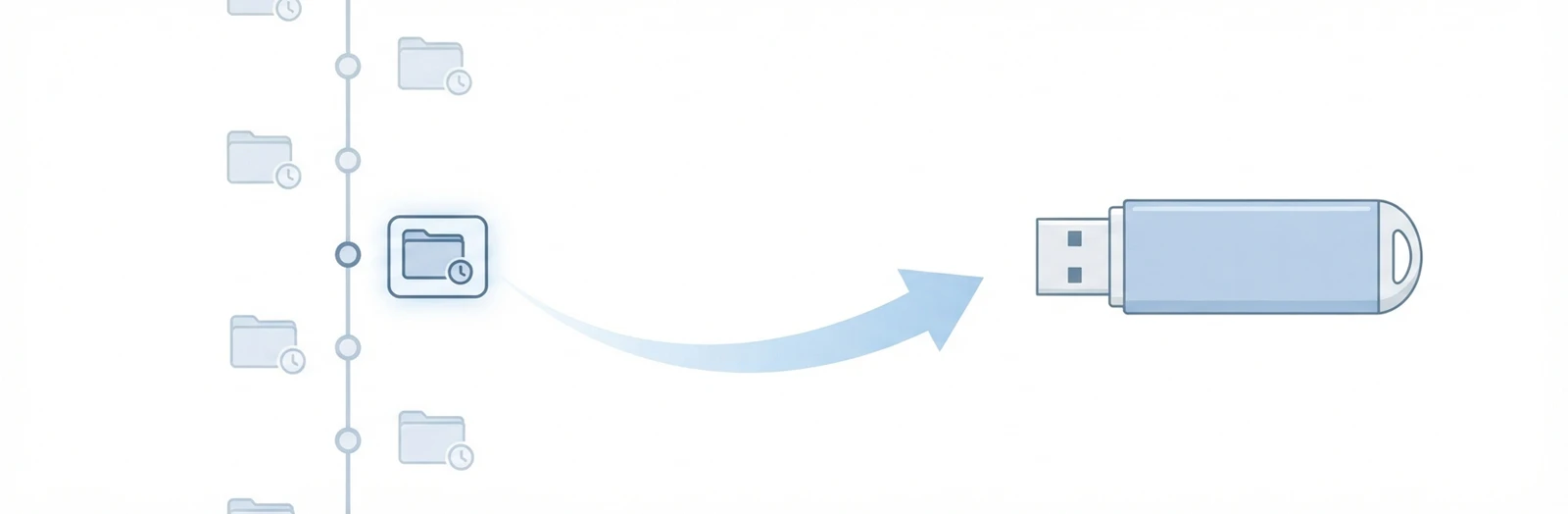
Open the Windows search bar, type Control Panel, and open it.
Go to System and Security → File History.
Click Restore personal files in the left-hand menu.
Browse the backup timeline, locate your USB drive's folder, select the files you need, and click the green Restore button.
Depends on: File History being enabled and the drive added as a backup source. It only tracks a drive it was told to track. If it was never configured, skip to Method 2.
Restoring via "Previous Versions" in File Explorer
A faster route that leans on Windows' built-in restore points and shadow copies:
Open File Explorer and click This PC.
Right-click your USB drive and select Properties.
Open the Previous Versions tab.
If Windows cached a version, select the most recent working one and click Restore - or Open, to copy files out manually.
You opened the Previous Versions tab and it's empty
This is the normal result on removable drives, not a sign that the feature is broken. Shadow copies are kept on the system drive, and Windows rarely places them on external media. Nothing here means nothing recoverable - it means this particular tool has no copy to offer. Move on.
Method 2: Recover Deleted USB Files from Cloud & Local Backups
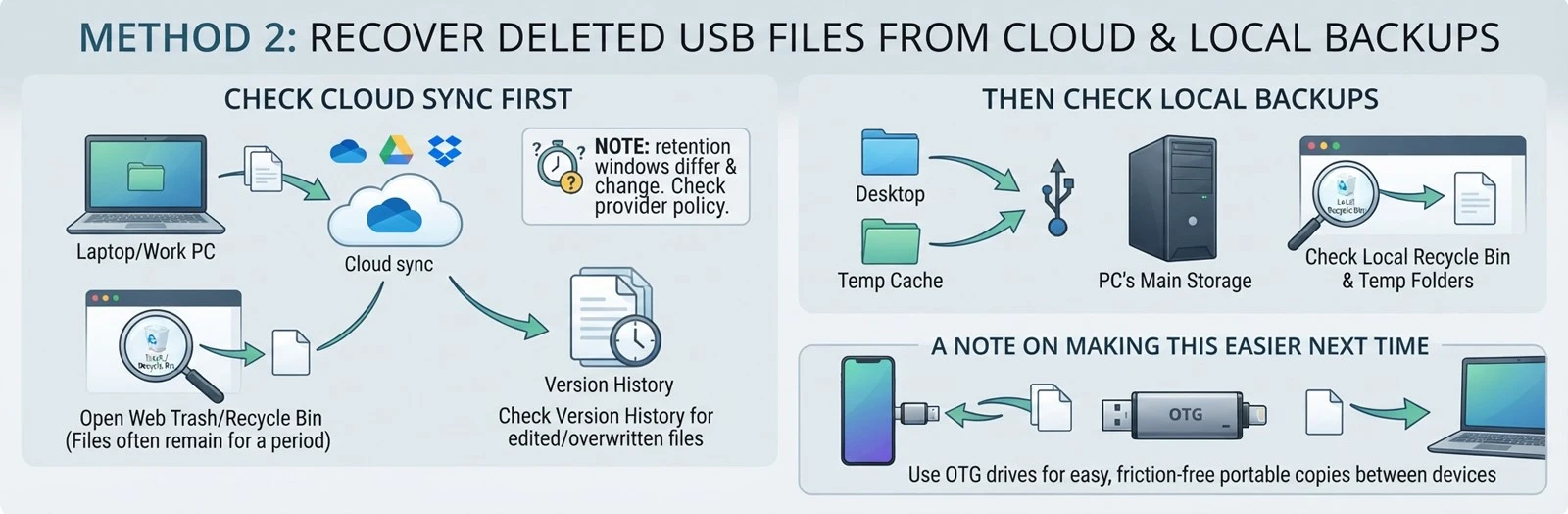
Sometimes the files aren't trapped on the USB drive at all. They live somewhere else in your setup.
Check cloud sync first
Did you plug this drive into a laptop or work computer that syncs its folders automatically?
Sign in to the web version of your provider (OneDrive, Google Drive, or Dropbox).
Open the Trash / Recycle Bin tab. Files deleted from synced local folders often stay there for a set period.
Check Version History on individual files if they were recently edited or overwritten.
Don't assume a fixed retention window
It differs by platform and by plan, and providers change it without announcement. Check your provider's current policy in their help center before you rely on the number you remember.
Then check local backups
Look at your PC's main storage. Did you drag a batch of files from the USB to a desktop folder before editing them? Check the local Recycle Bin and any temporary cache folders you use.
A note on making this easier next time
A reliable portable copy that plugs into both phone and PC - an OTG drive, for instance - removes the friction that makes the "copy on the flash drive" step of your backup routine so easy to skip.
Why Command Prompt (ATTRIB) Cannot Recover Deleted Files
Search online for USB fixes and you'll eventually find articles promising a magic Command Prompt trick that restores everything. Many people believe ATTRIB recovers deleted files. It does not. It only reveals hidden ones.
The command most often quoted is:
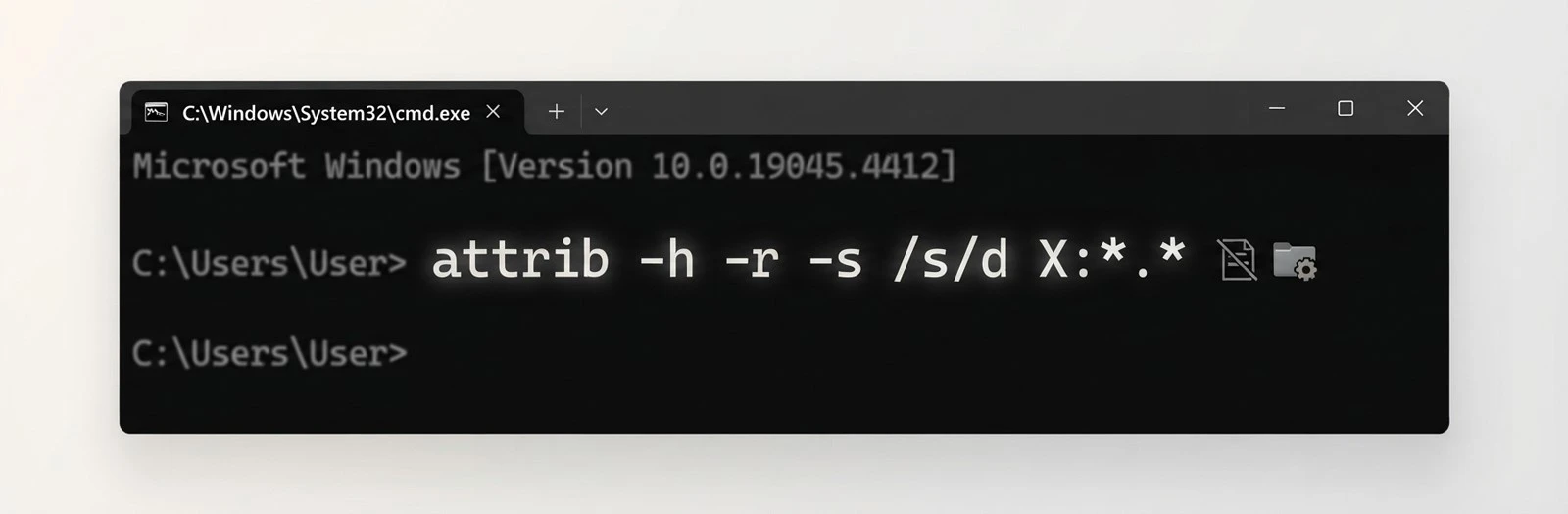
attrib -h -r -s /s /d X:\*.*
Replace X with your USB drive's actual letter. What each flag does:
-h - clears the hidden attribute
-r - clears the read-only status
-s - clears the system file protection
/s - applies to all subfolders
/d - applies to the folder itself as well as files
What this command changes, and what it leaves alone
It flips attribute flags on files that already exist on the drive. That is the whole of its job. It does not read raw sectors, does not rebuild a file allocation table, and cannot conjure back a file whose entry has been removed - once the index marker is gone, the file is invisible to the operating system, and so it is invisible to attrib too.
When this is the right tool
Use it when your folders suddenly turn into shortcut icons, or when the drive reports full storage but clicking inside shows nothing. That combination - space used, contents missing - is the signature of files locked behind attribute flags rather than deleted.
Check whether it worked before you go further
Run it, then refresh the folder. If the files appear, you're done - copy them off the drive immediately. If nothing changes, the files were most likely truly deleted. Stop looking for a command that will bring them back, and move to the options below.
If Free Methods Fail: Your Realistic Options
If native tools and command lines yield nothing, you've reached the ceiling of zero-cost recovery.
|
Dimension |
Free Built-In Methods |
Third-Party Recovery Software |
Professional Lab Recovery |
|
Best for |
Hidden files, system backups, minor glitches |
Accidental deletion, formatted partitions |
Physically broken chips, dead controllers, water damage |
|
Cost |
Free |
Free scan, paid license |
High (varies widely by lab and region) |
|
Success rate |
Low to moderate (depends on setup) |
High (deep sector scanning) |
Highest (hardware-level chip-off recovery) |
|
Risk / Privacy |
No risk (uses built-in OS features) |
Varies with the tool's trustworthiness |
Physical handling risk; use a trusted vendor |
Success rates and pricing swing widely with drive condition, market, and provider. Treat the ranges above as directional, not guaranteed.
One judgment call, and then stop: if the data is genuinely irreplaceable, decide now whether a reputable recovery suite or a professional lab is worth the cost - and keep the drive unplugged in the meantime.
How to Prevent USB Data Loss
The cheapest recovery is the one you never need. Two habits carry most of the weight: buy drives that don't fail early, and change how you treat portable storage day to day.
Buy for the failure you're trying to avoid

Cheap, unbranded drives use low-grade NAND flash and weak controllers, which is why they corrupt and brown out under load. When you source drives for professional, institutional, or enterprise deployment - or you need OEM & ODM USB manufacturing services - look for higher-grade NAND (industrial-grade flash holds read/write cycles longer and decays less over time), casings that survive drops and moisture, and a documented factory stress-test rather than a spec sheet claim.
Change the routine
Use "Safely Remove Hardware." Yanking a drive while the write cache is active is a common cause of sudden corruption - let the OS dismount it first.
Keep more than one copy. Never leave your only version on a flash drive.
Test before you trust. Buy from authorized sources, and if a deal looks too cheap to be real, verify the drive before you put anything important on it.
FAQ
Q: Can I recover deleted files from a
without any software?
A: Sometimes. Windows File History, Previous Versions, and cloud / Recycle Bin backups can restore files if those layers were active. If none were, built-in tools cannot recover genuinely deleted data.
Q: Why does my USB show as empty but the storage is full?
A: : The files are likely hidden by attribute flags rather than deleted. This is the one case the attrib command reliably fixes.
Q: Can Command Prompt actually recover deleted files?
A: No. ATTRIB can unhide files that still exist on the drive, but it cannot restore data that was genuinely deleted.
Q: Does formatting a USB drive erase data permanently?
A: Not immediately, but it removes the file system structure. Recovery after formatting usually requires software, and success drops the more you write to the drive afterward.
Q: How long do deleted files stay recoverable?
A: Until the sectors are overwritten. The sooner you stop using the drive, the better your chances.
Q: What if my USB isn't recognized at all?
A: Rule out simple causes first - a missing drive letter, a bad port or cable, or a USB driver issue. If the drive still isn't detected, the controller may be physically damaged.


